10 GPT Tips and Tricks 90% of Users Have Never Tried | AI Bytes
0% read
10 GPT Tips and Tricks 90% of Users Have Never Tried
Tutorials
10 GPT Tips and Tricks 90% of Users Have Never Tried
Most ChatGPT users barely scratch the surface. These 10 advanced GPT tips cover memory, projects, custom instructions, and prompt patterns that quietly do the heavy lifting in 2026.
June 9, 2026
10 min read
373 views
Most people using ChatGPT in 2026 are doing roughly 10% of what the tool can actually do. They type a question, copy the answer, close the tab. Fine. But there's a whole layer of features, prompt patterns, and quiet workflow tricks that turn GPT from a chatty search box into something closer to a real assistant.
This tutorial walks through 10 GPT tips and tricks that even daily users tend to miss. Some are buried in settings menus. Some are prompt patterns the OpenAI team has documented but nobody reads. And a few are just behaviors the model has that aren't obvious until someone points them out.
No fluff. Just the stuff that actually changes how you work.
What You'll Learn
Don't skip this part. By the end of this guide you'll know how to:
Configure ChatGPT memory and custom instructions so you stop repeating yourself
Use Projects to keep long-running work organized
Run structured outputs that plug straight into spreadsheets and code
Get massively better answers with role priming, chain-of-thought, and the "critique then revise" pattern
Use the Canvas editor, voice mode, and the often-forgotten data analysis tool the right way
These GPT tips and tricks apply to ChatGPT on Plus, Team, and Enterprise plans, and most work on the free tier with GPT-4o as well.
Prerequisites
You'll need:
A ChatGPT account (free works for most tips, Plus unlocks Projects and longer memory)
Five minutes to update settings before you start prompting
A real task to throw at it. Tutorials with toy prompts teach you nothing
One note on models. ChatGPT in 2026 ships with several models in the picker, including newer GPT-5-series defaults and reasoning-oriented options. The tips below work across them. According to OpenAI's model docs, GPT-4o (still selectable in the picker) handles a 128K context window at $2.50 per million input tokens and $10 per million output tokens via the API. Whichever model your plan unlocks, the prompt patterns transfer.
1. Set Custom Instructions Once and Stop Repeating Yourself
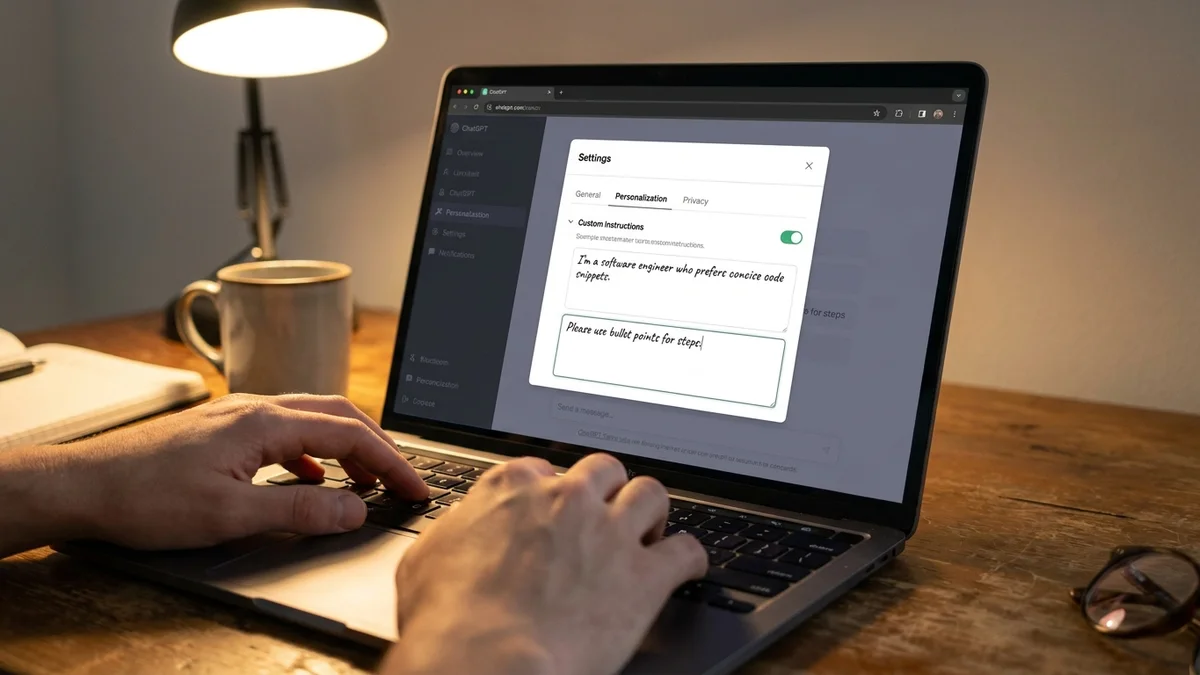
Open Settings, then Personalization, then Custom Instructions. Two boxes. Most people leave them blank.
Fill them in. Seriously.
In the first box ("What would you like ChatGPT to know about you?") write your role, the tools you use, and the context that's true for almost every conversation. Something like: I'm a backend engineer working in Go and Python on a Postgres/Kubernetes stack. I write for technical audiences.
In the second box ("How would you like ChatGPT to respond?") set the tone, length, and format defaults. Be direct. Skip disclaimers. Use code blocks for any code. Default to concise answers unless I ask for depth.
The model reads both boxes on every new chat. You'll feel the difference within a day.
2. Actually Use Memory (and Audit It Regularly)
Memory is the feature people either forget exists or accidentally fill with garbage. It's in Settings > Personalization > Memory.
When it's on, ChatGPT writes durable notes about you across conversations. The trick is two-fold. First, you can tell it explicitly: Remember that I prefer pytest over unittest. It will. Second, you should open the memory panel once a week and delete stale entries. Old project context, abandoned preferences, that one weird typo it remembered as a fact.
A clean memory is a useful memory. A bloated one starts dragging answers in weird directions.
3. Use Projects to Keep Long Work Organized
Projects landed in ChatGPT last year and they're underused. A Project is basically a folder with its own custom instructions, its own files, and its own thread history.
Use them like this:
One Project per ongoing job (book draft, codebase, client account)
Drop reference files into the Project sidebar. The model uses them as context
Set Project-specific instructions that override your global ones for that scope
The payoff is huge for anything multi-week. No more pasting the same style guide into every new chat.
4. Force Structured JSON Output for Anything Spreadsheet-Bound
This is the trick that quietly replaces a lot of manual data entry work. Ask GPT to return JSON in a strict schema, then paste it into a spreadsheet or feed it to code.
Example prompt:
Extract the speaker, company, and one-line takeaway from each
session in this conference agenda. Return ONLY a JSON array
with keys: speaker, company, takeaway. No prose. No code fences.
The model will hand you clean JSON. From there it's a five-second paste into Google Sheets via the JSON import add-on, or straight into a Python script. The OpenAI API has a dedicated structured outputs mode that enforces this with a JSON schema, but the plain ChatGPT interface follows the same pattern reliably if you're explicit.
5. The Critique-Then-Revise Pattern
One of the highest-leverage prompt patterns nobody uses. After GPT gives you a draft, send this:
Now critique that draft as a harsh editor. List 5 specific
weaknesses. Then rewrite it addressing every weakness.
The second pass is almost always noticeably better than the first. Why? Because you're forcing the model to do what it should have done internally: look at its own output critically before declaring it done. Works for code, essays, marketing copy, anything.
And it costs you nothing but one extra turn.
6. Role Prime With Specifics, Not Generic Personas
"Act as an expert" is dead. The model has heard it a million times and doesn't really change behavior much. What does work is specific role priming with constraints.
Bad: Act as a Python expert.
Good: You're a senior Python engineer reviewing pull requests for a team that ships to production hourly. You care most about correctness, then readability, then performance. Flag anything you'd block in review.
The second prompt produces measurably sharper critiques because the model has a frame for what to prioritize. Constraints are the actual unlock, not the persona label. (Our breakdown of OpenAI's GPT-5.4 split covers when picking the smaller, faster variant actually wins.)
7. Use Voice Mode for Drafting While Walking
The Advanced Voice mode on the ChatGPT mobile app is genuinely good for thinking out loud. Open it, hit the voice button, and talk through whatever problem you're stuck on. The model will push back, ask clarifying questions, and you'll often end the walk with a draft you can clean up at the desk.
This is the one place where the chat interface feels like a colleague instead of a tool. Per OpenAI's announcement notes, Advanced Voice supports natural interruptions and emotional tone, which makes the back-and-forth flow much closer to a real conversation than the old voice mode.
Not gonna lie, it feels weird the first few times. Push through it.
8. The Hidden Data Analysis Tool
Upload a CSV, Excel file, or even a messy PDF and ChatGPT will spin up a sandboxed Python environment to actually run code on your data. People know this exists. They just don't use it for what it's best at.
Quick statistical sanity checks before opening a real notebook
Generating throwaway charts for a slide deck
Converting between file formats you'd otherwise Google a tool for
The model writes the Python, runs it, shows you the output, and lets you download the result. Per OpenAI's documentation, files up to 512MB are supported, and the sandbox resets per conversation.
9. Canvas for Anything Longer Than a Tweet
Canvas is the side-by-side editor that opens when you ask for longer documents or code. Most users never trigger it deliberately. They should.
Type /canvas or ask explicitly: Open this in Canvas so we can edit together. Now you can:
Highlight a paragraph and ask for changes to just that selection
Track versions and roll back
Ask for line-by-line code suggestions inline
It turns ChatGPT from a one-shot generator into something that feels more like collaborative editing. For anything beyond a few paragraphs, this is the right surface to work in.
10. The Three-Question Self-Audit Before You Send
This isn't a feature. It's a habit. Before you send a prompt, run it through three quick checks:
Have I given role and constraints? Specifics about audience, format, length.
Have I supplied the actual context? Pasted code, real data, the doc, not a summary.
Have I told it what success looks like? A concrete example, a target structure, an evaluation rule.
A prompt that passes all three rarely needs a second attempt. A prompt that fails all three is why people think "AI is wrong all the time." It's usually not wrong. It's just answering the question you actually typed, which wasn't the one you meant.
Common Pitfalls
A few traps to avoid as you start using these GPT tips and tricks more aggressively:
Don't dump your entire context window on every message. Long inputs slow responses and the model loses focus past a certain point. Move long-lived context into Custom Instructions, Memory, or a Project file.
Don't trust output for things you can't verify. Especially numbers, citations, and code edge cases. Run it. Read it. The model is confident even when wrong.
Don't anthropomorphize. It's not "thinking" about your problem between turns. Each prompt is fresh-ish (memory aside). State matters.
Testing and Verification
After you've set up Custom Instructions and Memory, run a quick sanity check:
Open a fresh chat
Ask: Based on what you know about me, suggest three task formats that suit my work style.
If the answer reflects your settings, you're configured correctly. If it gives generic advice, your Custom Instructions need more specifics
For structured output (tip 4), test with a simple schema first, then add complexity. Validate the JSON with a quick python -m json.tool paste in your terminal, or just drop it into jsonlint.com.
Next Steps
If you want to push further, look at the OpenAI Playground. It gives you access to system prompts, temperature controls, and model selection in a way the chat UI hides. It also lets you build prompts you can later port to the API with almost no rewriting. For more prompt-pattern depth across other model families, see our Project Genie prompt tips.
And if you're already comfortable with the API side, the function calling docs are where the next 10x lives. Letting GPT call your own functions turns it from a chatbot into an actual workflow engine (the Responses API with computer use takes this further). That's a whole separate tutorial, but it's the natural next step once these basics are second nature.
The biggest unlock isn't a hidden feature. It's writing prompts like you're briefing a smart new hire, with context, constraints, and a clear definition of done.
Start with Custom Instructions today. Add Memory and Projects this week. Then layer in the prompt patterns. You'll feel the difference fast.
Do these GPT tips and tricks work on the free ChatGPT plan?
Most do. Custom Instructions, Memory, voice mode, Canvas, and the data analysis tool are all available on the free tier with GPT-4o. Projects, longer memory, and priority access to o3 reasoning models are Plus, Team, or Enterprise only. If you're trying to test these on free first, start with Custom Instructions and structured JSON output, which give the biggest immediate lift.
How do I delete specific memories without wiping all of them?
Go to Settings > Personalization > Memory > Manage. You'll see a list of every memory ChatGPT has saved about you. Hover over a row and a trash icon appears. Click it to delete just that entry. There's also a 'Clear All' button at the bottom if you want a fresh start, but the per-item delete is the move when you just want to prune a few stale facts.
Why does ChatGPT sometimes ignore my Custom Instructions?
Three common causes. First, you're in Temporary Chat mode (the dotted icon), which disables both memory and Custom Instructions. Second, your instructions contradict the system safety guidelines, which always win. Third, your instructions are too long or too vague. Keep each box under about 1500 characters and use specific, scannable directives rather than long paragraphs.
Can I use these tricks with the OpenAI API instead of the chat interface?
Yes, and many translate directly. Custom Instructions become your system prompt. Memory has to be implemented yourself via a vector store or database. Structured outputs are a first-class API feature with JSON schema enforcement. The critique-then-revise pattern works in any chat completion call. Pricing as of early 2026 is $2.50 per million input tokens and $10 per million output for GPT-4o, so iteration costs add up if you're calling it programmatically.
What's the difference between Projects and just starting a new chat?
A Project gives you three things a fresh chat doesn't: persistent custom instructions scoped to that Project only, a file sidebar that the model can reference across every conversation in the Project, and grouped chat history. If you're doing one-off questions, a regular chat is fine. If you're working on the same codebase, book, or client over weeks, a Project saves you from re-explaining context every time.