How to Run Llama 4 Locally: Complete Setup Guide | AI Bytes
0% read
How to Run Llama 4 Locally: Complete Setup Guide
Tutorials
How to Run Llama 4 Locally: Complete Setup Guide
Step-by-step guide to running Meta's Llama 4 Scout and Maverick models on your own hardware using Ollama, llama.cpp, and vLLM, with hardware requirements and optimization tips.
AI-assisted article · Facts from the sources linked below · No hands-on testing · How this site works
Introduction
Meta's Llama 4 family represents a major leap forward in open-weight AI models, introducing a Mixture of Experts (MoE) architecture that delivers impressive performance while keeping compute requirements manageable. Why run a model locally when hosted APIs exist? Privacy, offline access, and zero per-token costs are the big three. Running Llama 4 locally is entirely achievable with the right hardware and software setup.
This guide walks you through every step — from choosing the right model variant to generating your first response on your own machine.
What You'll Learn
How to choose between Llama 4 Scout and Maverick based on your hardware
Three different methods to run Llama 4 locally (Ollama, llama.cpp, vLLM)
Hardware requirements and optimization tips for each variant
How to quantize models to fit smaller GPUs
Understanding the Llama 4 Model Family
Before diving into setup, it's important to understand which Llama 4 variant fits your use case and hardware.
Llama 4 Scout
Architecture: 17B active parameters, 16 experts (109B total)
Context window: 10 million tokens
Best for: Most local setups, general-purpose tasks, coding, and long-document analysis
Partial GPU offloading: Runs on multi-GPU setups (e.g., 4x80 GB A100s for Q4) with significant CPU offloading for smaller configs
Start with Scout: If this is your first time running Llama 4 locally, start with Llama 4 Scout. Its MoE architecture means only 17B parameters are active per inference pass, making it surprisingly efficient despite the 109B total parameter count.
Hardware Requirements
So what hardware do you actually need? Here's what you need for a smooth local experience:
Minimum Setup (Llama 4 Scout, Quantized)
Component
Requirement
GPU
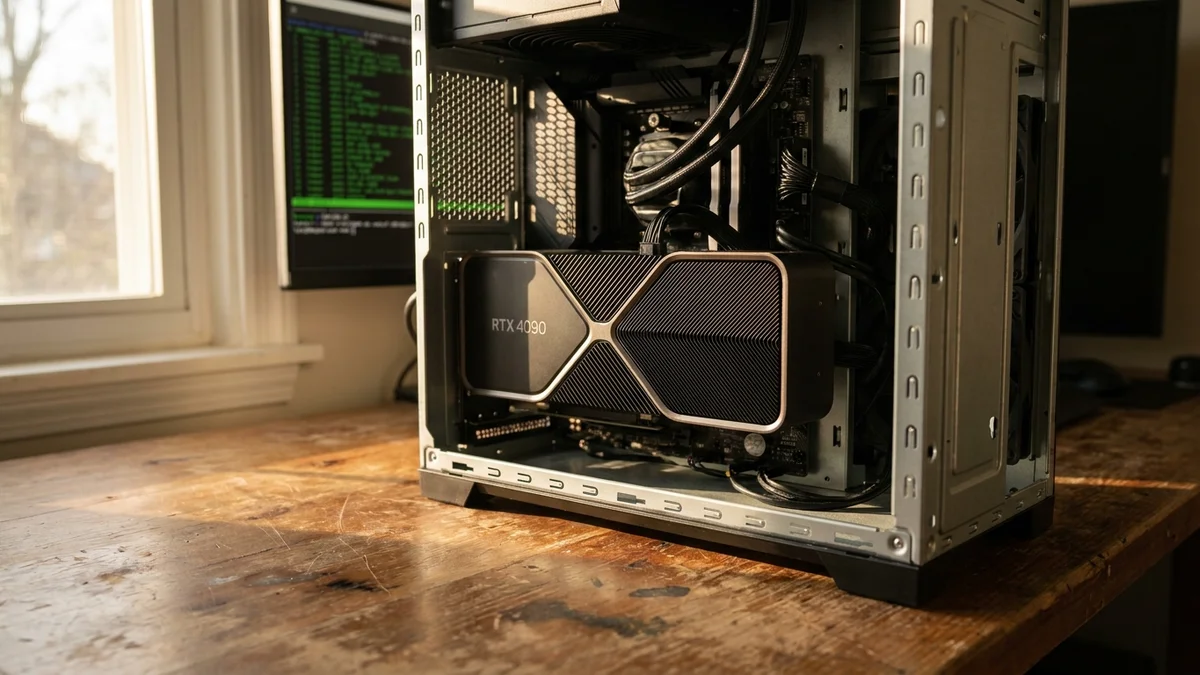
NVIDIA RTX 3090 (24 GB) or RTX 4070 Ti Super (16 GB) with CPU offloading
RAM
32 GB
Storage
80 GB free (for Q4_K_M quantized model files)
OS
Linux (recommended), Windows 11, macOS (Apple Silicon)
Apple Silicon Users: macOS with Apple Silicon (M2 Pro/Max/Ultra, M3, M4) can run Llama 4 Scout quantized models using unified memory. Since the Q4_K_M quantized Scout model is ~65 GB, you'll need a Mac with at least 96 GB unified memory for best results (e.g., M2 Ultra, M3 Max 96 GB, M4 Max 128 GB). A 64 GB Mac can work with smaller quantizations (Q2_K at ~40 GB) or heavy swap usage, but expect slower performance.
Method 1: Using Ollama (Easiest)
Ollama is the simplest way to run Llama 4 locally. It handles model downloading, quantization, and serving with a single command.
Step 1: Install Ollama
Linux / WSL:
Bash
curl -fsSL https://ollama.com/install.sh | sh
macOS (Homebrew):
Bash
brew install ollama
Windows:
Download the installer from the official Ollama website and run it. Ollama runs natively on Windows 11 with GPU support.
Step 2: Pull and Run Llama 4 Scout
Bash
# Pull the model (this downloads ~65 GB for the default quantized version)
ollama pull llama4

# Start a chat session
ollama run llama4
For the larger Maverick model:
Bash
ollama pull llama4:maverick
ollama run llama4:maverick
Step 3: Use Ollama as an API Server
Ollama automatically starts an OpenAI-compatible API server on port 11434:
You can integrate this with any application that supports the OpenAI API format (see our Ollama vs LM Studio comparison for how Ollama stacks up) by pointing it to http://localhost:11434/v1.
Step 4: Configure Performance Options
Create a custom Modelfile for fine-tuned settings:
Dockerfile
FROM llama4

PARAMETER temperature 0.7
PARAMETER num_ctx 8192
PARAMETER num_gpu 99
PARAMETER num_thread 8
Then build and run:
Bash
ollama create llama4-custom -f Modelfile
ollama run llama4-custom
Method 2: Using llama.cpp (Most Flexible)
llama.cpp gives you granular control over quantization, context length, and GPU offloading. It's ideal for squeezing maximum performance from limited hardware.
Step 1: Build llama.cpp
Bash
git clone https://github.com/ggml-org/llama.cpp.git
cd llama.cpp

# Build with CUDA support (NVIDIA GPUs)
cmake -B build -DGGML_CUDA=ON
cmake --build build --config Release -j$(nproc)
Hugging Face Access: You need to accept Meta's license agreement on Hugging Face and set your HF_TOKEN environment variable before downloading Llama 4 models through vLLM or Hugging Face.
Step 3: Query the Server
Python
from openai import OpenAI

client = OpenAI(
    base_url="http://localhost:8000/v1",
    api_key="not-needed"
)

response = client.chat.completions.create(
    model="meta-llama/Llama-4-Scout-17B-16E-Instruct",
    messages=[{"role": "user", "content": "Write a Python function to detect palindromes."}],
    temperature=0.7,
    max_tokens=512
)

print(response.choices[0].message.content)
Optimizing Performance
Once your model is running, these are the tweaks that actually matter for day-to-day usability.
GPU Memory Optimization
If you're running out of VRAM:
Bash
# llama.cpp: reduce layers on GPU
./build/bin/llama-cli -m model.gguf -ngl 20 -c 2048

# This offloads only 20 layers to GPU, the rest use CPU
Context Length vs Speed Tradeoff
Llama 4 Scout supports up to 10M tokens, but local setups should use practical limits:
Context Length
VRAM Overhead
Use Case
2,048
Minimal
Quick Q&A
8,192
Moderate
Code generation, short docs
32,768
Significant
Long documents
131,072
Very High
Book-length analysis
CPU Inference (No GPU)
Don't have a GPU at all? You can still run Llama 4 Scout on CPU:
Bash
# llama.cpp with CPU only
./build/bin/llama-cli \
  -m model-Q4_K_M.gguf \
  -c 2048 \
  -ngl 0 \
  -t 8 \
  -cnv
Expect significantly slower speeds (1-3 tokens/second vs 20-60+ on GPU), but it works for testing and light usage. Note: CPU inference requires enough system RAM to hold the full model (~65 GB for Q4_K_M).
Connecting a Web UI
A web interface makes interacting with your local Llama 4 much more comfortable.
Make sure you're using the correct chat template. Llama 4 uses a specific prompt format. With llama.cpp, use --chat-template llama4 to apply it automatically.
Summary
The MoE architecture is the key insight: you get frontier-model intelligence with the inference cost of a 17B model. That's what makes local deployment practical.
Running Llama 4 locally is straightforward with modern tooling. Ollama offers the fastest setup, llama.cpp gives you the most control, and vLLM is the best choice for multi-GPU configurations. Start with Llama 4 Scout at Q4_K_M quantization — it hits the sweet spot of quality and hardware requirements for most users.
The MoE architecture means you get the intelligence of a much larger model with the compute efficiency of a 17B parameter model during inference -- only 17B parameters are active per token. However, all expert weights (109B for Scout, 400B for Maverick) must be loaded into memory, so storage and VRAM requirements reflect the total parameter count. With quantization and partial GPU offloading via llama.cpp, Scout remains one of the most accessible frontier-class models for local deployment. If you want to explore more open-source models to run locally, check out our guide to 8 open source LLMs for local AI in 2026.
Yes, you can run Llama 4 Scout on CPU using llama.cpp with a quantized GGUF model. You'll need at least 80 GB of system RAM for the Q4_K_M quantization (~65 GB model file plus overhead) and should expect speeds of 1-3 tokens per second. Use Q4_K_M quantization and set -ngl 0 to keep all layers on CPU. For machines with less RAM, use Q2_K (~40 GB).
How much VRAM do I need for Llama 4 Scout?
It depends on quantization and whether you fully load the model into VRAM. At Q4_K_M, the model is ~65 GB -- so fully loading it requires a GPU setup with at least 65 GB VRAM (e.g., 2x RTX 3090 or 1x A100 80 GB). However, llama.cpp supports partial GPU offloading: you can run Q4_K_M on a single 24 GB GPU (like an RTX 3090 or 4090) by keeping most layers in system RAM, with slower but usable inference. Full-precision BF16 requires ~220 GB of VRAM, which needs a multi-GPU server.
What's the difference between Llama 4 Scout and Maverick?
Both use 17B active parameters per inference, but Scout has 16 experts (109B total parameters) while Maverick has 128 experts (400B total). Maverick delivers higher quality responses but requires significantly more storage and memory. Scout is the practical choice for most local setups.
Is Ollama or llama.cpp better for running Llama 4?
Ollama is better for beginners and quick setup — it handles everything with a single command. llama.cpp gives more control over quantization, GPU offloading, and context length, making it better for users who want to fine-tune performance on specific hardware.
Can I run Llama 4 on a Mac with Apple Silicon?
Yes. Llama 4 Scout runs on Apple Silicon Macs using Ollama or llama.cpp with Metal acceleration. Since the Q4_K_M quantized model is ~65 GB, you'll need a Mac with at least 96 GB unified memory for best results (M2 Ultra, M3 Max 96 GB, M4 Max 128 GB). A 64 GB Mac can use smaller quantizations like Q2_K (~40 GB) but performance will be limited.
How do I connect Llama 4 to a chat interface?
The easiest way is to run Llama 4 through Ollama, then connect Open WebUI via Docker. Open WebUI provides a ChatGPT-like browser interface that communicates with your local model through Ollama's API on port 11434.
This article was researched and written with AI assistance (Anthropic's Claude) using the sources cited above, and published by Shadman Ahmed, a software architect who runs AI Bytes. We don't run our own model tests or benchmarks. If something here is wrong or out of date, please tell us.