Ollama vs LM Studio: 7 Differences That Matter | AI Bytes
0% read
Ollama vs LM Studio: 7 Differences That Matter
Comparisons
Ollama vs LM Studio: 7 Differences That Matter
Ollama is a CLI-first tool built for developers who want API access and Docker deployment. LM Studio is a polished desktop app for anyone who wants to chat with local models visually. Here's how to choose.
March 30, 2026
12 min read
713 views
Updated March 31, 2026
Why are you still paying for cloud API calls?
That's the question thousands of developers and AI tinkerers are asking as local LLM tools have gotten shockingly good. The two names that dominate every conversation: Ollama and LM Studio. Both let you run open-source language models on your own hardware — no API keys, no per-token fees, no data leaving your network. But they take fundamentally different approaches to the same problem.
So which one deserves a spot in your workflow? Let's break it down.
The 30-Second Verdict
Ollama vs LM Studio comes down to one question: do you live in the terminal or prefer a GUI?
Ollama is the developer's choice — a CLI-first tool with a native API, Docker support, and a massive ecosystem of integrations. Think of it as "Docker for LLMs." You pull a model, run it, and pipe the output wherever you need.
LM Studio is the visual choice — a polished desktop app where you browse models, click download, and start chatting. Think of it as "Spotify for LLMs." No terminal knowledge required.
Both tools are free. Both are excellent. They just serve different people.
Ollama vs LM Studio: Side-by-Side Comparison
Feature
Ollama
LM Studio
Interface
CLI / Terminal
GUI Desktop App
Price
Free (MIT License)
Free (Personal Use)
Open Source
Yes
No (Closed Source)
Platforms
macOS, Windows, Linux
macOS, Windows, Linux
Default API Port
11434
1234
Primary Model Format
GGUF
GGUF, MLX
Model Source
ollama.com/library
HuggingFace
OpenAI-Compatible API
Yes (/v1/ endpoint)
Yes (/v1/ endpoint)
Docker Support
Official image
No
GPU Acceleration
CUDA, Metal, ROCm, Vulkan (experimental)
CUDA, Metal, Vulkan
Model Customization
Modelfile (code-based)
UI sliders & presets
Background Service
Yes (always running)
Yes (via lms daemon)
The table tells the story at a glance, but the details matter. Let's dig in.
Installation & First Run
Ollama makes setup feel almost insultingly simple. On macOS or Linux, it's one command:
Bash
curl -fsSL https://ollama.com/install.sh | sh
ollama pull llama3.1
ollama run llama3.1
Three lines. You're chatting with an 8-billion-parameter model. On Windows, you download an installer from ollama.com and the experience is just as smooth.
LM Studio takes a different path. Download the desktop app from lmstudio.ai, install it like any other application, and open a polished interface that looks like a native chat client. From there, you search for models (it connects directly to HuggingFace), click download, and start a conversation.
If you're comfortable in a terminal, Ollama gets you from zero to chatting in under 60 seconds. If you're not, LM Studio is the obvious pick.
The real difference here? Ollama runs as a background service — it starts with your machine and sits there waiting for API calls. LM Studio is a desktop app you launch when you want it. That distinction shapes everything else.
User Interface & Daily Workflow
This is where the two tools diverge the most.
Ollama is a command-line tool. Period. You interact through your terminal, through HTTP calls, or through third-party UIs built on its API (Open WebUI is the most popular). Ollama itself has no chat window, no settings panel, no model browser. And honestly? For developers, that's a feature, not a bug.
LM Studio gives you everything in a single window. A model browser with search. A chat interface with conversation history. A settings panel where you tweak temperature, context length, top-p, and dozens of other parameters with visual sliders. It even has a built-in local server you toggle on with one click.
If you pair Ollama with Open WebUI, you get a chat interface that's arguably nicer than LM Studio's built-in one. So the "no GUI" argument weakens once you factor in Ollama's ecosystem.
Model Library & Format Support
As of March 2026, Ollama's model library at ollama.com/library hosts hundreds of models across every major family: Llama 4, Qwen 3.5, DeepSeek-R1, DeepSeek-V3, Gemma 3, Mistral, Phi 4, and many more. Downloading is Docker-style:
Bash
ollama pull llama3.1:70b
The naming convention — model:tag — feels instantly familiar to anyone who's used containers. And Ollama picks a sensible default quantization if you don't specify one. Just ollama pull llama3.1 and you get a working model.
LM Studio connects directly to HuggingFace and lets you browse GGUF-quantized versions of practically any open model. This means a wider raw selection — anything on HuggingFace with a GGUF file is fair game. (If you want model recommendations, check out our best GGUF models to run locally.) But you're also responsible for knowing which quantization you want. Q4_K_M? Q5_K_S? Q8_0? If those look like gibberish, that's a steeper learning curve.
LM Studio gives you more choices. Ollama gives you better defaults. Both valid approaches — depends on whether you want to tinker or just run.
On format support, both primarily use GGUF (the standard format for llama.cpp, which powers both tools under the hood). LM Studio additionally supports the MLX format for Apple Silicon optimization. Ollama supports importing custom GGUF files through its Modelfile system and recently added cloud-hosted model access using a -cloud tag suffix (e.g., qwen3-coder:480b-cloud).
API & Developer Integration
This is Ollama's home turf. And it's not even close.
Ollama was built API-first. Its REST API runs on localhost:11434 with endpoints for chat completions, text generation, embeddings, and full model management. As of March 2026, the OpenAI-compatible endpoint at /v1/ means any tool built for the OpenAI API — LangChain, LlamaIndex, custom Python scripts — can point at Ollama with a one-line config change.
Then there's Docker. Ollama's official image makes team deployment trivial:
Bash
docker run -d --gpus all -v ollama:/root/.ollama -p 11434:11434 ollama/ollama
Spin up a container, mount a volume for models, and your whole team has a shared local inference server. Try doing that with a desktop GUI app.
Ollama also ships official Python and JavaScript client libraries, and as of v0.18.3, it integrates directly with VS Code through GitHub Copilot — letting you use local models right in your editor.
LM Studio offers an OpenAI-compatible server on localhost:1234 that works well for basic integration. You can start it from the GUI or via the lms server start CLI command. There's no Docker image, and while LM Studio now ships with a CLI tool (lms) that supports headless daemon mode and server management, it still lacks Ollama's depth of ecosystem integration. For solo experimentation, that's fine. For anything involving automation or team deployment, Ollama wins decisively.
Performance & Resource Management
Most comparisons won't tell you this: both tools use llama.cpp as their primary inference engine (how it stacks up against newer runtimes) (LM Studio also supports Apple's MLX framework on Mac). So for the same model at the same quantization level, performance is nearly identical. Token generation speed, VRAM consumption, output quality — it's all coming from the same underlying library.
The differences are in resource management.
Ollama runs as a persistent service and keeps models loaded in VRAM between requests. Your second query is fast because the model is already warm. But VRAM stays allocated even when idle.
LM Studio lets you load and unload models manually through the GUI. You get more direct control, which matters on machines with limited VRAM where you might need to free GPU memory for other tasks (like actually using your computer for something else).
As of March 2026, Ollama v0.19.0 improved KV cache hit rates (particularly for the Anthropic-compatible API) and fixed a KV cache memory leak in the MLX runner. Both tools support GPU offloading — splitting a model between GPU VRAM and system RAM. But be warned: any layers running on CPU will be dramatically slower. Plan your model size around your GPU.
Quick VRAM Guide (Same for Both Tools)
Model Size
Quantization
Approximate VRAM
7B parameters
Q4_K_M
~4.5 GB
13B parameters
Q4_K_M
~8 GB
34B parameters
Q4_K_M
~20 GB
70B parameters
Q4_K_M
~40 GB
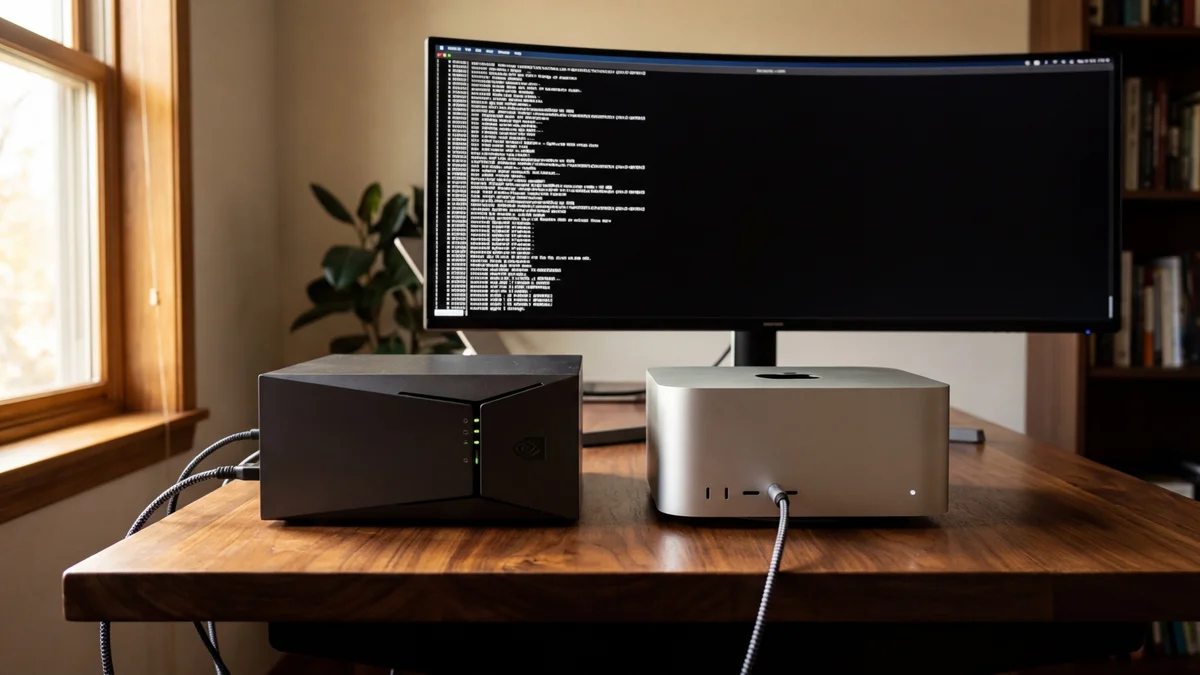
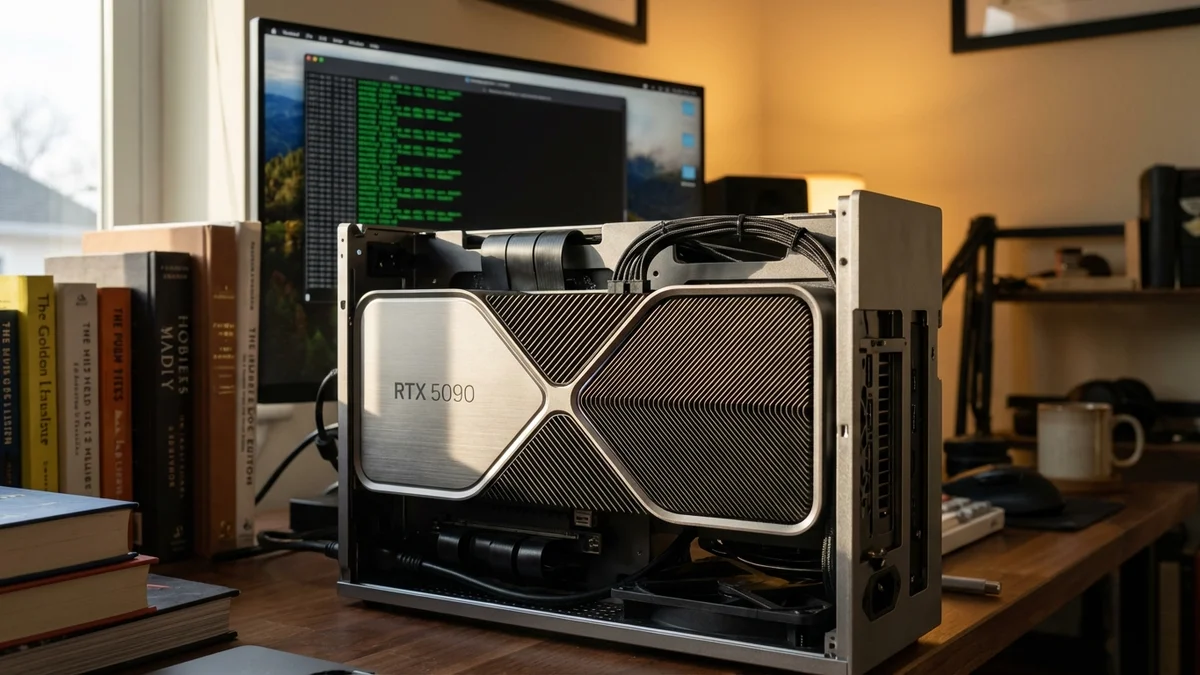
Got a GPU with 8 GB of VRAM? A 7B or 13B model runs great. Got 24 GB? You can handle a 34B model comfortably. The 70B beasts need serious hardware — or aggressive quantization and patience. (For a deep dive on high-end AI hardware, see our DGX Spark vs Mac Studio comparison.)
Customization & Model Creation
Ollama's Modelfile system is genuinely clever. It uses a Dockerfile-like syntax:
FROM llama3.1
SYSTEM "You are a senior Python developer. Be concise."
PARAMETER temperature 0.3
PARAMETER num_ctx 8192
Save that, run ollama create my-coding-assistant -f Modelfile, and you've got a named custom model you can call anytime. System prompts, parameter tweaks, LoRA adapters, prompt templates — all in a text file you can version control and share with your team.
LM Studio handles customization through its interface. Sliders for parameters, text fields for system prompts, saved presets for different configurations. More intuitive for beginners, but harder to reproduce or automate.
Ollama's Modelfile approach means your configurations live in code, not in an app's internal state. That matters for team work and reproducible setups.
Community & Ecosystem
Ollama's open-source nature has spawned an enormous ecosystem. As of March 2026, the project has a massive ecosystem of compatible applications and integrations. The GitHub repository is one of the most-starred AI projects on the platform. Open WebUI, Continue.dev, LangChain, LlamaIndex, n8n, Dify — the list of tools with first-class Ollama support keeps growing.
LM Studio has a loyal community, especially among non-developer users who appreciate the GUI-first design. But being closed-source caps the ecosystem's growth. You can't extend LM Studio with plugins, can't contribute bug fixes, and can't audit the code. The trade-off is a more controlled, polished experience — fewer moving parts, fewer things to break.
Pricing & Licensing
Both tools are free to download and use. The difference is in the license.
Ollama is fully open source under the MIT License. Use it for personal projects, commercial products, enterprise deployments — anything. Fork it, modify it, build a business on it.
LM Studio is free for personal use. For commercial or enterprise use, check lmstudio.ai for current licensing terms. The application is closed-source.
The models you run have their own licenses independent of which tool loads them. Llama models use Meta's community license. Some Mistral models (like Mistral 7B) are Apache 2.0, while larger models use more restrictive licenses. Gemma has Google's terms. Neither Ollama nor LM Studio changes the underlying model licensing.
When to Choose Ollama
You're a developer building AI-powered applications
You need Docker deployment or CI/CD integration
You want to script model management and inference
You're integrating with LangChain, LlamaIndex, or custom code
You need a background service that's always ready for API calls
You work on a team and want reproducible, version-controlled configs
Open-source licensing matters to you
When to Choose LM Studio
You want to explore local models without touching a terminal
You prefer browsing models visually through a HuggingFace-connected UI
You want to compare model outputs side by side
You value a polished, self-contained desktop experience
You like adjusting inference parameters with visual sliders
You're on Apple Silicon and want native MLX support built in
The Final Verdict
There's no universal winner — and that's actually the right answer here.
For developers and teams: Ollama. The CLI-first design, Docker support, native API, Modelfile system, and massive ecosystem make it the backbone of serious local AI workflows. It does one thing — serve models — and does it exceptionally well.
For exploration and everyday chatting: LM Studio. If you want to download models and start talking without writing code, LM Studio delivers that experience beautifully. The model browser, chat UI, and parameter controls are polished and genuinely pleasant to use.
The power move? Run both. Ollama as your always-on inference server for development. LM Studio for casually exploring new models or visually tweaking parameters. They use different ports, don't conflict, and each shines where the other doesn't.
The tools for running LLMs locally have never been this good. Whether you prefer a blinking cursor or a clean GUI, your data stays on your machine and your API bill stays at zero. That's pretty hard to argue with.
Yes. Ollama uses port 11434 and LM Studio uses port 1234 by default, so they don't conflict. You can run both simultaneously — for example, using Ollama as a background API server for your code while chatting with models in LM Studio's GUI. Just keep in mind that each tool will consume its own VRAM for loaded models, so you'll need enough GPU memory for both.
Does Ollama work with AMD GPUs on Windows?
As of March 2026, Ollama supports AMD GPU acceleration via ROCm on both Linux and Windows. On Linux, ROCm v7 supports a wide range of AMD GPUs. On Windows, ROCm v6.1 supports select AMD Radeon RX 7000/6000 series and Radeon PRO cards. Check the [Ollama GPU documentation](https://github.com/ollama/ollama/blob/main/docs/gpu.mdx) for the full list of supported GPUs on each platform. LM Studio also supports AMD GPUs via Vulkan on Windows and ROCm on Linux.
Can I use the same model files in both Ollama and LM Studio?
Both tools support the GGUF format, so you can use the same underlying model files. However, Ollama stores models in its own internal directory and expects you to import GGUF files via a Modelfile, while LM Studio downloads and manages GGUF files directly from HuggingFace. You can't simply point one tool at the other's model storage without manual steps.
What is the minimum hardware needed to run LLMs locally?
You need at least 8 GB of RAM to run a 7B parameter model at Q4 quantization, though 16 GB is recommended for a comfortable experience. A dedicated GPU with 6-8 GB of VRAM makes a huge difference — without one, you're limited to CPU inference which runs roughly 5-10x slower. For 70B models, you'll want 40+ GB of VRAM (consistent with Q4 quantization) or expect very slow performance.
Can I access Ollama from another computer on my network?
Yes. By default Ollama only listens on localhost, but you can set the environment variable OLLAMA_HOST=0.0.0.0 to bind to all network interfaces. This lets other machines on your LAN send API requests to your Ollama server. LM Studio's local server can also be configured for network access through its settings panel. Be mindful of security — neither tool provides authentication by default.