Stable Diffusion XL in 5 Steps: Zero to Pro | AI Bytes
0% read
Stable Diffusion XL in 5 Steps: Zero to Pro
Tutorials
Stable Diffusion XL in 5 Steps: Zero to Pro
The definitive SDXL tutorial covering installation, prompting, and advanced techniques like ControlNet and LoRAs. Everything you need to go from first image to pro-level output.
AI-assisted article · Facts from the sources linked below · No hands-on testing · How this site works
Everyone keeps saying Stable Diffusion XL is old news. They're wrong.
Sure, newer models like FLUX and Stable Diffusion 3 grab the headlines. But SDXL still has the largest ecosystem of fine-tuned models, LoRAs, and community support of any open-source image generator out there. As of April 2026, there are thousands of SDXL-compatible models on HuggingFace — and that number keeps growing.
This Stable Diffusion XL tutorial walks you through everything: installing SDXL, generating your first image, writing better prompts, and using advanced techniques like ControlNet and LoRAs. Whether you've never touched an AI image generator or you're looking to squeeze more out of your setup, this guide has you covered.
What You'll Learn in This Stable Diffusion XL Tutorial
Stable Diffusion XL (SDXL) is an open-source text-to-image model released by Stability AI in July 2023. You use it by running it locally on your GPU through a frontend like ComfyUI or Forge, writing text prompts to describe the image you want, and tweaking settings like resolution, sampler, and CFG scale to control the output.
By the end of this guide, you'll be able to:
Install and configure SDXL on your local machine
Generate high-quality 1024×1024 images from text prompts
Write prompts that actually produce what you want
Use the SDXL refiner pipeline for extra detail
Apply LoRAs and ControlNet for precise creative control
SDXL isn't just an image generator — it's a creative toolkit with an ecosystem no other open-source model can match.
Prerequisites: Hardware and Software
Before we start, here's what you need:
Hardware (minimum):
GPU with 8GB+ VRAM (NVIDIA recommended — RTX 3060 12GB or better)
16GB system RAM
20GB free disk space
Hardware (recommended):
GPU with 12GB+ VRAM (RTX 4070 or higher)
32GB system RAM
SSD with 50GB+ free space
Software:
Python 3.10 or 3.11
Git
NVIDIA drivers with CUDA support
AMD GPU users can run SDXL through DirectML or ROCm, but NVIDIA cards give the smoothest experience by far. And if your hardware doesn't cut it, cloud options like Google Colab or RunPod work fine — check current pricing as GPU rental rates change frequently.
Step 1: Choose Your SDXL Interface
You don't run SDXL from the command line (well, you can, but you shouldn't). You'll want a UI. Here are the three best options as of April 2026:
ComfyUI (Recommended for Power Users)
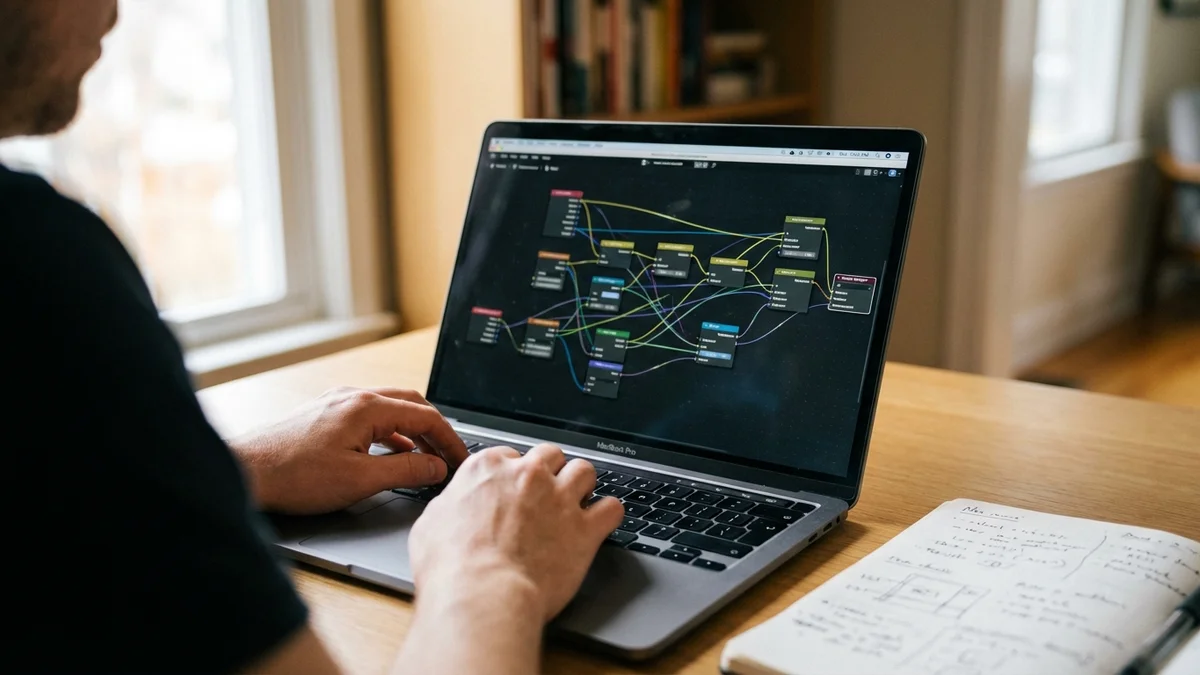
ComfyUI uses a node-based workflow — think of it like wiring together building blocks. It's intimidating at first glance, but it gives you the most control over every step of the generation pipeline.
ComfyUI launches at http://127.0.0.1:8188 by default.
Stable Diffusion WebUI Forge (Best Balance)
Forge is a performance-optimized fork of the original Automatic1111 WebUI. It's easier to pick up than ComfyUI and runs noticeably faster than vanilla A1111.
Bash
git clone https://github.com/lllyasviel/stable-diffusion-webui-forge.git
cd stable-diffusion-webui-forge
./webui.sh
On Windows, run webui-user.bat instead.
Fooocus (Easiest Option)
If you want something that "just works," Fooocus is your answer. Minimal settings, sensible defaults, and it handles the refiner automatically. It's basically the Midjourney experience for local generation.
So which one should you pick? If you're a complete beginner, start with Fooocus. Once you're comfortable with prompting, move to Forge. When you need maximum control, graduate to ComfyUI.
Step 2: Download the SDXL Models
SDXL uses a two-stage architecture: a base model that generates the initial image, and an optional refiner that adds fine detail. You need at least the base model.
Download these from the official HuggingFace repository (stabilityai/stable-diffusion-xl-base-1.0):
SDXL Base 1.0 (~7GB) — required
SDXL Refiner 1.0 (~6GB) — optional but recommended
Don't skip the refiner. The difference between base-only and base+refiner output is like the difference between a rough sketch and a finished painting.
Step 3: Generate Your First SDXL Image
With your UI running and models in place, it's time to generate. Here's a simple test prompt:
Prompt:
A golden retriever sitting in a sunlit meadow, wildflowers in the background,
soft bokeh, natural lighting, professional wildlife photography
Hit generate. On an RTX 3060 12GB, expect roughly 30–45 seconds per image at these settings. An RTX 4090 brings that down to about 8–12 seconds.
Important: SDXL is optimized for 1024×1024. You can generate at other resolutions, but stick to these aspect ratios for best results:
Aspect Ratio
Resolution
1:1
1024 × 1024
3:4
896 × 1152
4:3
1152 × 896
9:16
768 × 1344
16:9
1344 × 768
Going outside these supported resolutions often produces doubled heads, warped compositions, and other ugly artifacts. Don't do it.
Step 4: Master SDXL Prompt Engineering
This is where most people get stuck. Writing prompts for SDXL isn't like chatting with ChatGPT. It's more like giving precise instructions to a very literal photographer.
The Anatomy of a Good SDXL Prompt
Structure your prompts in layers:
Subject — what's in the image
Style — photography, illustration, painting, etc.
Lighting — natural, studio, dramatic, soft
Details — camera angle, lens type, color palette
Quality tags — high resolution, detailed, sharp focus
Example (portrait):
Portrait of a woman in her 30s reading a book at a coffee shop,
warm afternoon light through the window, shallow depth of field,
Canon EOS R5, 85mm f/1.4, editorial photography, natural skin texture
See the pattern? Subject first, then style cues, then technical camera details. SDXL responds really well to photography terminology — lens focal lengths, camera bodies, and lighting setups all produce measurably different results.
Prompt Weighting
Most SDXL interfaces support emphasis syntax. In ComfyUI and Forge, wrap important terms in parentheses:
(golden hour lighting:1.3), a cabin in the mountains, (snow:0.8), pine trees
Numbers above 1.0 increase emphasis; below 1.0 decreases it. Keep weights between 0.5 and 1.5 — going beyond that range usually creates artifacts.
What NOT to Do
Don't write essay-length prompts. SDXL's text encoders handle about 77 tokens each effectively. Keep it focused.
Don't stack contradictory styles ("photorealistic anime painting" isn't a thing)
Don't ignore negative prompts — they're half the equation
Don't copy random quality tag strings from the internet without understanding what each token does
Step 5: Advanced SDXL Techniques
Once you're comfortable with basic generation, these techniques will take your output from good to genuinely impressive.
Using the Refiner Properly
The SDXL refiner works best when it takes over at 70–80% of the generation steps. In ComfyUI, you connect the base model output to the refiner with a switch at step 20 of 25 total. In Forge, set the refiner switch point to 0.8.
The refiner excels at skin textures, fabric detail, and fine patterns. But it can sometimes soften stylistic choices from the base model — so for highly stylized art, you might want to skip it entirely.
LoRAs: Custom Styles and Subjects
LoRAs (Low-Rank Adaptations) are small fine-tuned model add-ons, typically 10–200MB each. They let you add specific styles, characters, or concepts to your generations without retraining the full model. Think of them as plugins for your creative engine.
Place them in your UI's LoRA directory (models/loras/)
Reference them in your prompt (syntax varies by UI)
In Forge, add <lora:filename:0.7> to your prompt. The number controls strength — start at 0.7 and adjust from there. Too high and you get artifacts; too low and the LoRA barely registers.
ControlNet with SDXL
ControlNet gives you spatial control over your generations. Want to match a specific pose? Use OpenPose. Need to follow an edge map? Use Canny. Want to preserve the composition of an existing image? Use Depth.
For ComfyUI, install ControlNet nodes through the Manager. For Forge, the extension is built in. Download SDXL-specific ControlNet models — and this is critical — don't use SD 1.5 ControlNet models with SDXL. They're not compatible and will produce garbage.
ControlNet is the single most powerful tool in the SDXL ecosystem. Once you learn it, you'll wonder how you ever worked without it.
img2img and Inpainting
img2img lets you use an existing image as a starting point. Set the denoising strength between 0.3 and 0.7:
0.3–0.4: Minor modifications, keeps most of the original
0.5–0.6: Significant changes while maintaining composition
0.7+: Major transformation — the original is just a rough guide
Inpainting works the same way but lets you mask specific areas for regeneration. It's perfect for fixing hands (SDXL's eternal weakness) or swapping out backgrounds.
Common Pitfalls and How to Fix Them
Black or broken images: Usually a VRAM issue. Enable --medvram or --lowvram flags in Forge, or check your ComfyUI memory settings.
Distorted faces at non-standard resolutions: Stick to the supported resolution table above. Use img2img or a dedicated upscaler if you need larger output dimensions.
Hands with too many fingers: Add "deformed hands, extra fingers" to your negative prompt. But honestly, SDXL is much better at hands than SD 1.5 ever was. For critical shots, use inpainting to touch up specific problem areas.
Blurry or soft results: Increase your step count to 30–40. Make sure you're using the refiner. And check that your CFG scale isn't too high — anything above 10 tends to over-saturate and create strange sharpening artifacts.
Slow generation times: Close other GPU-intensive applications. Make sure you're running in fp16 precision (the default for most UIs). If you're on 8GB VRAM, enable attention slicing and VAE tiling in your UI's settings.
Verify Your Results
How do you know your setup is actually working correctly? Run this simple sanity test:
Prompt:A red cube on a blue table, studio lighting, white background, product photography
You should get a clearly red cube sitting on a clearly blue surface with clean studio lighting. If the colors are wrong or muddy, your model file may be corrupted — redownload it. If the composition is chaotic with multiple objects, your sampler settings need adjustment.
Next Steps: Beyond SDXL Basics
You've got SDXL running and you know the fundamentals. Here's where to go from here:
Explore SDXL fine-tunes — Models like RealVisXL, Juggernaut XL, and DreamShaper XL push SDXL's capabilities in specific directions. Some of these fine-tunes are genuinely better than the base model for certain use cases.
Learn ComfyUI workflows — The community shares increasingly sophisticated node setups for consistent character generation, batch processing, and automated pipelines.
Try upscaling — Use 4x-UltraSharp or similar upscale models to push your 1024px output to 4K resolution and beyond.
Experiment with newer models — As of April 2026, FLUX and Stable Diffusion 3 offer different strengths (and if you want to run other AI models locally, you can), but SDXL's ecosystem remains unmatched for sheer variety and community support.
The real beauty of running Stable Diffusion locally is that you own the entire pipeline. No subscriptions. No content filters you didn't choose. No API rate limits. Your hardware, your rules.
Can I run Stable Diffusion XL on a Mac with Apple Silicon?
Yes, SDXL runs on Apple Silicon Macs (M1, M2, M3, M4) using MPS acceleration through PyTorch. ComfyUI and Forge both support macOS. Performance is roughly comparable to an RTX 3060 on an M2 Pro with 16GB unified memory, though generation times vary by configuration. Install using the standard instructions but skip CUDA — PyTorch handles MPS automatically on macOS.
Is Stable Diffusion XL free for commercial use?
SDXL 1.0 is released under the CreativeML Open RAIL++-M License, which permits both personal and commercial use with use-based restrictions on harmful applications. Unlike some newer Stability AI models that use different license terms, the SDXL 1.0 license does not impose revenue-based thresholds. You should review the full license text on the official HuggingFace model card, as the specific use-based restrictions in Attachment A of the license apply to all users regardless of revenue.
How do I train my own SDXL LoRA?
You can train a custom SDXL LoRA using tools like Kohya_ss or the built-in training features in ComfyUI. You'll need 15–30 high-quality training images of your subject, captioned with descriptive text files. Training typically takes 1–3 hours on an RTX 3060 12GB with default settings. Start with a learning rate of 1e-4, 1500–3000 training steps, and a network rank of 32 for a good balance between file size and quality.
What's the difference between SDXL and SDXL Turbo?
SDXL Turbo is a distilled version of SDXL that generates images in 1–4 steps instead of 25–30, dramatically reducing generation time. The trade-off is lower detail and less prompt adherence — Turbo works best for quick previews and iterating on compositions. For final production-quality images, standard SDXL with the refiner still produces noticeably better results, especially for photorealistic content.
Can SDXL generate readable text in images?
SDXL is better at text rendering than SD 1.5 but still unreliable for anything beyond 1–3 short words. For single words like signs or logos, put the text in quotes in your prompt and use a high CFG scale (8–9). For anything longer, generate the image without text and add typography in post-processing with a tool like Photoshop or Canva. If accurate text rendering is your primary need, DALL-E 3 or Ideogram are significantly better options.
This article was researched and written with AI assistance (Anthropic's Claude) using the sources cited above, and published by Shadman Ahmed, a software architect who runs AI Bytes. We don't run our own model tests or benchmarks. If something here is wrong or out of date, please tell us.