Tutorials
Claude Desktop: 5-Step Setup From MCP to Cowork
Set up the Claude desktop app from scratch — MCP extensions, Cowork agent, Computer Use, and power-user tips that'll save you hours.
March 25, 202612 min read
Set up the Claude desktop app from scratch — MCP extensions, Cowork agent, Computer Use, and power-user tips that'll save you hours.

Anthropic's engineers built Cowork — the company's new AI agent for everyday users — in roughly a week and a half. And they built it using their own AI coding tool, Claude Code. That's either the most impressive demonstration of AI-assisted development or the most meta product launch of 2026.
Probably both.
The Claude desktop app has quietly become one of the most capable AI tools you can install on your machine. With MCP extensions, Cowork, and Computer Use now in the mix, it's a genuine productivity system — not just a chat window. This Claude desktop app tutorial walks you through the full setup: installation, MCP configuration, Cowork activation, and the features most people still haven't discovered.
This part's important — by the end of this guide, you'll have:
Before we start, make sure you have:
Head to claude.ai/download and grab the installer for your platform. The macOS version is a standard .dmg — drag it to Applications and you're done. Windows users get a conventional .exe installer.
First launch asks you to sign in with your Anthropic account. Do that, and you'll land in a clean chat interface that looks a lot like the web version. But don't be fooled — the desktop app can do things the browser never will.
The desktop app isn't just a wrapper around the website. It's a full client with file system access, MCP support, and agent capabilities the web version simply can't match.
So why bother with a desktop app when the web works fine? Two words: local access. The desktop client can read your files, run local MCP servers, and — with Cowork — operate directly on your documents. The web version is sandboxed. The desktop version isn't.
Worth flagging: as of March 25, 2026, Anthropic offers three tiers:
| Plan | Price | Key Features |
|---|---|---|
| Free | $0/month | Basic Claude access, limited daily usage |
| Pro | $20/month | Priority access, higher limits, early features |
| Max | $100–$200/month | Everything in Pro plus Cowork, highest usage limits |
Cowork — the headline feature we'll cover in Step 4 — is available on Pro, Max, Team, and Enterprise plans. If you're here mainly for MCP and general desktop usage, Pro is plenty. But if you want the full agent experience, you'll need Max.
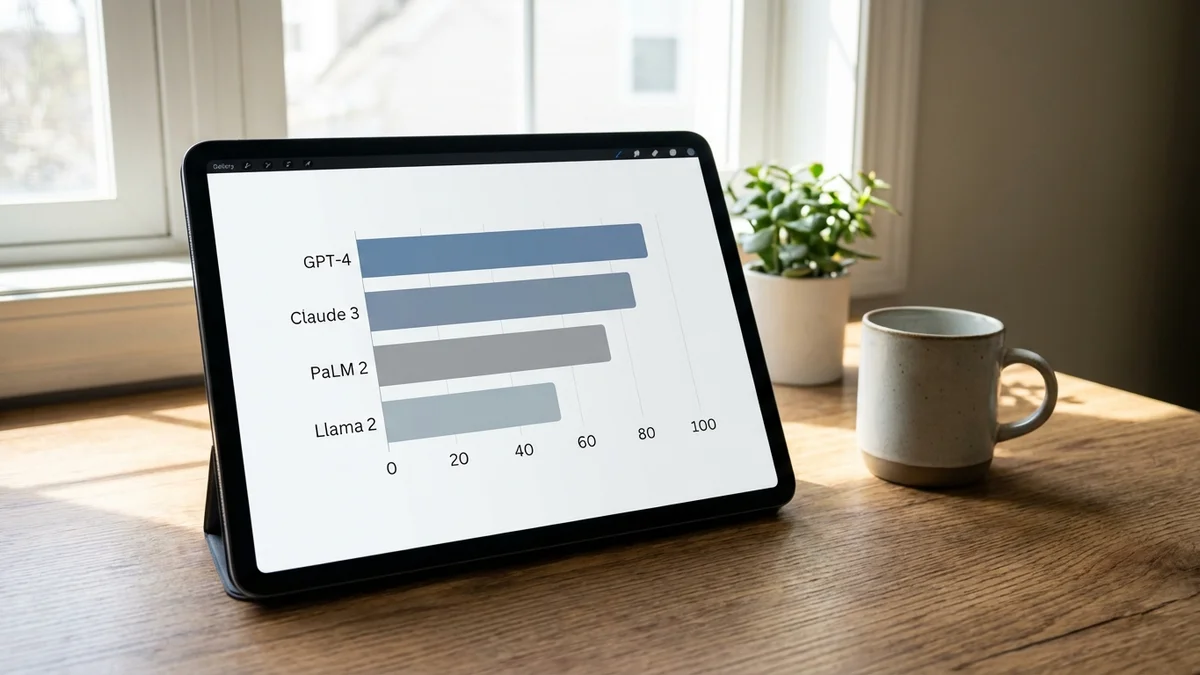
The model powering your conversations depends on your tier too. Max subscribers get full access to Claude Opus 4.6, which leads major benchmarks including MMLU and SWE-bench Verified, according to Anthropic's published evaluations. Pro users default to Claude Sonnet 4.6 — still highly capable across the same benchmarks.
This is where the Claude desktop app gets genuinely interesting. MCP — the Model Context Protocol — is Anthropic's open standard for connecting AI models to external tools and data sources. Think of it as USB ports for your AI: plug in a server, and Claude gains new abilities.
Without MCP, Claude can only work with what you paste into the chat window. With MCP, Claude can:
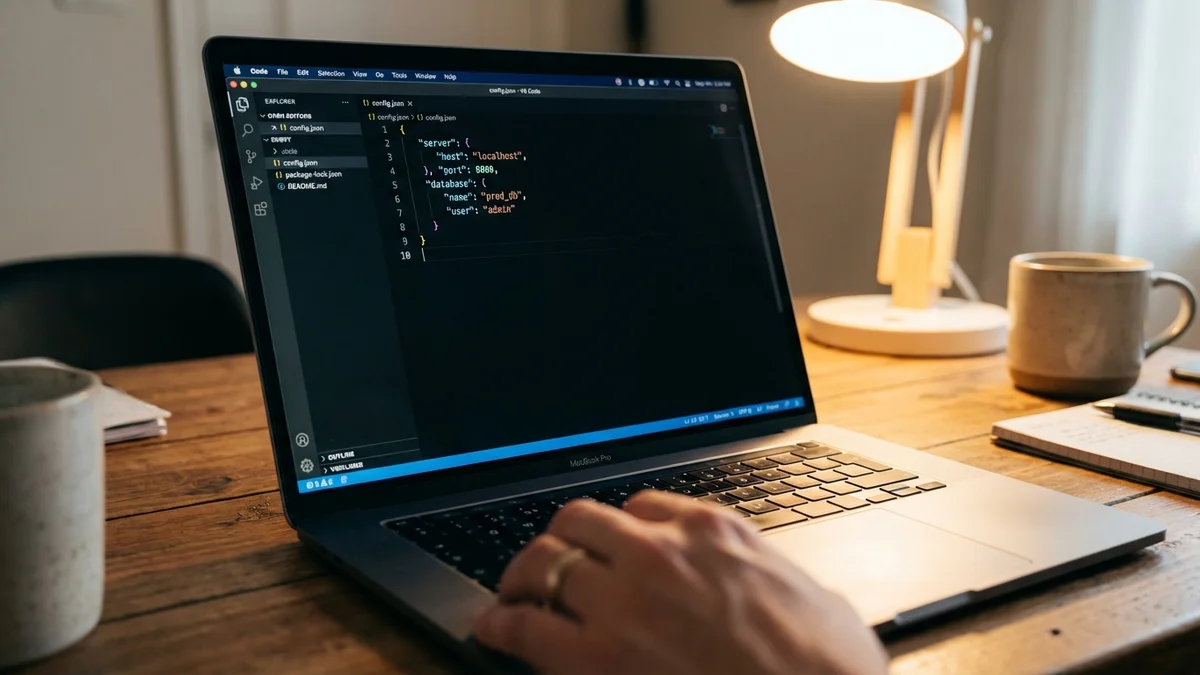
The configuration lives in a JSON file. On macOS, find it (or create it) at:
~/Library/Application Support/Claude/claude_desktop_config.json
On Windows:
%APPDATA%\Claude\claude_desktop_config.json
Here's a starter config that gives Claude read/write access to a folder on your machine:
{
  "mcpServers": {
    "filesystem": {
      "command": "npx",
      "args": [
        "-y",
        "@modelcontextprotocol/server-filesystem",
        "/Users/yourname/Documents"
      ]
    }
  }
}
Replace /Users/yourname/Documents with whatever directory you want Claude to access. Restart the desktop app after saving — MCP config is only loaded at launch. You should see a small tools icon in the chat input area confirming the connection.
A few that are particularly useful:
You can find a growing directory of community MCP servers at modelcontextprotocol.io. And yes, you can run multiple servers simultaneously — just add more entries to the mcpServers object in your config.
MCP is the single feature that separates the Claude desktop app from every other AI chat client. Once you've configured it, going back to copy-pasting context feels like going back to dial-up.
Don't skip this part. Here's the big one. According to VentureBeat, Anthropic released Cowork as a research preview in January 2026, and it represents a major shift in what the Claude desktop app can do for non-developers.
Claude Cowork is an AI agent built into the Claude desktop app that lets non-technical users automate tasks like file organization, expense reports, and document research — much like how developers use Claude Code in the terminal. Available for Pro, Max, Team, and Enterprise subscribers on macOS and Windows, Cowork can open folders, read your documents, and complete multi-step tasks without you babysitting every click.
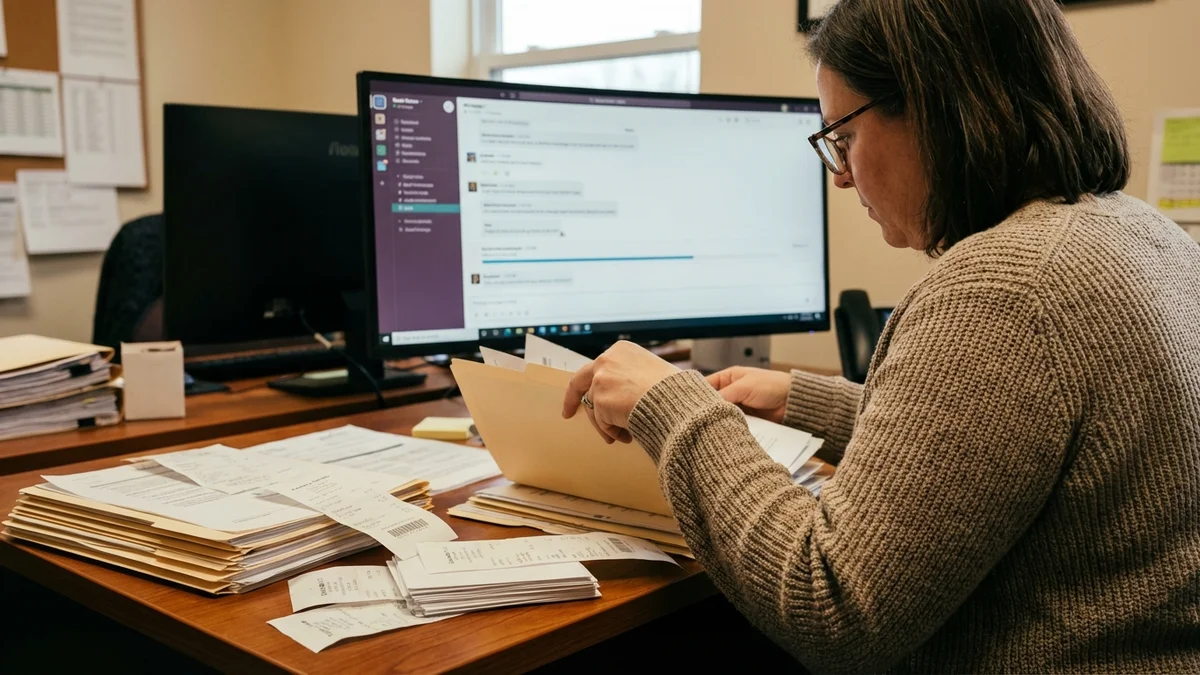
The origin story is pretty great. Anthropic noticed that developers were using Claude Code (their terminal-based coding tool) for decidedly non-coding work. According to Anthropic engineer Boris Cherny, users were doing vacation research, building slide decks, and cleaning up email — all through a coding tool. So Anthropic built a proper interface for that behavior.
The key insight: Cowork works best when you give it a concrete goal and a clear scope. It's an agent, not a chatbot. It wants to do things, not just talk about them.
Strong at:
Not great at yet:
Computer Use is Claude's ability to see your screen and interact with UI elements — clicking buttons, filling forms, and operating applications on your behalf. As of March 25, 2026, this remains in beta and requires explicit opt-in.
To enable it, check your Claude Desktop settings panel for a "Computer Use" or "Beta Features" toggle. When active, Claude can take screenshots of your desktop, interpret what's on screen, and execute mouse clicks and keyboard inputs.
A word of caution: Computer Use gives Claude significant control over your machine. (For context on how other companies approach this, see OpenAI's take on Computer Use.) Start with low-stakes tasks — let it fill out a simple form or reorganize some windows before trusting it with anything sensitive. And always supervise during your first few sessions.
Computer Use is like handing someone the keys to your car. Make sure they know how to drive before pointing them at the highway.
After working through the full setup, here are the things that trip people up most:
1. MCP server not showing up? Restart the app. Every single time. The config file is only read at launch — this catches everyone at least once (and it'll probably catch you too).
2. Start with one MCP server. Don't add six on day one. Get filesystem working, confirm it connects, then expand. Debugging MCP problems with multiple servers running is no fun.
3. Use system prompts for recurring tasks. The desktop app lets you set custom instructions. "You're a financial analyst reviewing expense reports" is far more effective than re-explaining context every conversation.
4. Scope your Cowork tasks tightly. Don't say "organize my entire computer." Point it at one folder with one clear objective. Expand scope gradually as you build trust in the output.
5. Check which model you're running. The app defaults to the best model available for your tier. Opus 4.6 tops benchmarks like HumanEval and GSM8K — it handles complex reasoning tasks that Sonnet would struggle with. If you're on Max, make sure you're actually getting Opus.
6. MCP logs help when things break. On macOS, check ~/Library/Logs/Claude/ for diagnostic output. A missing comma in your JSON config will silently break everything — logs are where you'll spot it.
Run through this quick checklist before calling it done:
If anything fails, the usual fixes are: restart the app, double-check your JSON config for syntax errors, and confirm Node.js is installed if you're using npx-based MCP servers.
Once you've got the fundamentals running:
Sources
As of March 2026, Cowork is available only on macOS through the Claude desktop app. Anthropic hasn't announced a Windows release date yet, but historically they've rolled macOS-first features to Windows within a few months. Check Anthropic's changelog or the Claude desktop app update notes for the latest platform availability.
Yes — MCP extensions work on all Claude desktop tiers including the free plan. The limitation on free accounts is usage volume and model access, not MCP functionality. However, you'll hit rate limits much faster, so if you plan to run MCP-heavy workflows regularly, the Pro plan at $20/month is the practical minimum.
There's no hard limit in the protocol specification, but running more than 5–8 MCP servers at once can noticeably increase startup time and memory usage since each server runs as a separate process. Most users find 2–4 well-chosen servers cover their needs without any performance issues.
Computer Use gives Claude the ability to see your screen and control mouse and keyboard inputs, which means it could potentially access sensitive information visible on screen. Avoid running it alongside open password managers, banking apps, or confidential documents. Use it in a controlled environment with only relevant applications visible, and always supervise during the current beta period.
Claude Code is a terminal-based agent designed for developers — it reads code, runs shell commands, and writes files in a programming context. Cowork brings similar agent capabilities to non-technical tasks through the desktop app's graphical interface. Think of Code as the developer tool and Cowork as the knowledge-worker tool. Both operate on local files, but they target different workflows and skill levels.